Guide · Christmas Eve
How to Catch Santa on Camera in Your House (Christmas Eve 2026)
Kids want proof, and a camera is the most convincing witness in the house. There are three realistic ways to get Santa on camera: film a real Santa, add one with a photo-editing app, or turn a photo of your room into night-camera footage. Here is how each one works, and where each one falls short.
Updated
Before you start: pick the spot
Decide where the story happens before you decide how to film it. The tree is the classic, because that is where the presents appear. The fireplace works if Santa comes down the chimney in your family’s version. No chimney? He can come through the front door or down the hallway. Then pick the moment: after the kids are asleep, and before anyone could possibly be up.
Method 1: Film a real Santa
The old-school way: a grown-up in a Santa suit, filmed by a camera you already own.
You need
- A Santa suit and a willing grown-up
- A camera: an indoor security camera, or a phone on a shelf or a tripod
- A dark room with the tree lights on
Steps
- The day before, put the camera up high in a corner, aimed at the tree or the fireplace. Record a short test in the dark and watch it back.
- After bedtime, switch off the room lights and leave the tree lights on.
- Start recording. Santa walks in, sets the presents down, takes a bite of a cookie and leaves. Half a minute is plenty.
- Keep him moving and turned a little away from the lens, so the camera sees the suit more than the face.
- Save the clip to your phone and trim it so only Santa is in it.
Where it falls short
- Kids know their family. A voice, a walk, a ring or familiar slippers can give Santa away.
- In the dark, a phone records grainy, dim video. A camera with night vision does better.
- If your camera saves clips to an online account, check who else in the family can see them before you record.
- It takes a costume, a helper and a rehearsal, on the busiest night of the year.
Method 2: Add Santa with a photo-editing app
Take a photo of your room, then add Santa with a sticker app made for it. It is quick and cheap, and the result depends on how carefully you place him.
Steps
- Take a wide photo of the room you picked, with the floor in the shot so Santa has somewhere to stand.
- Open a Santa sticker app and choose a Santa image or scene.
- Resize and move him until his feet sit on the floor and he looks the right size next to the sofa and the tree.
- If the app lets you, adjust brightness and color so Santa matches the light in your room.
- Save the result, and keep the original photo too.
Where it falls short
- A pasted-in Santa can look flat when his size, light and shadows don’t match the room.
- The App Store listings of the two big sticker apps in our comparison describe photos, not video. For a moving Santa, look at the AR and video apps there instead.
- Both of those sticker apps are free to download and sell their Santas as in-app purchases.
Prices, ratings and what each app makes are in Santa caught on camera apps compared (checked November 13, 2026).
Method 3: Turn a photo of your room into night-camera footage
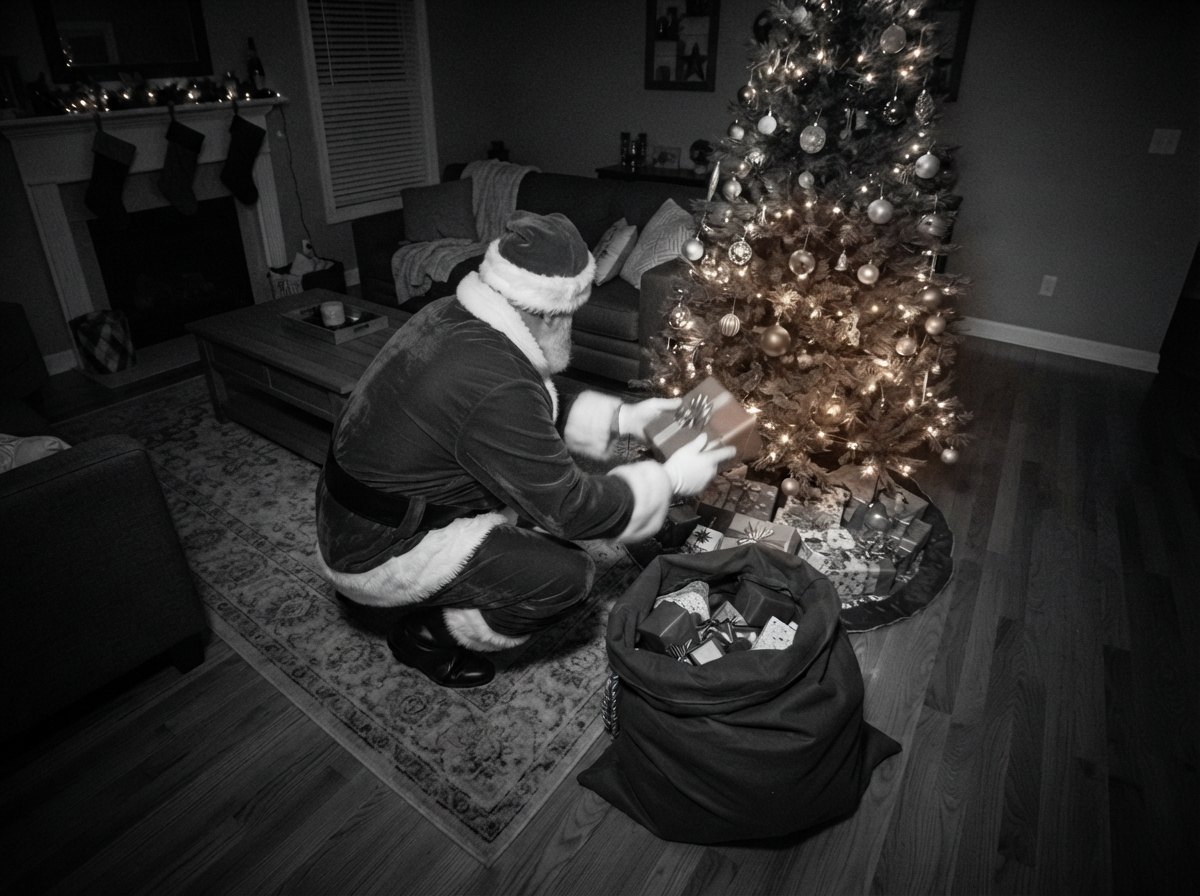
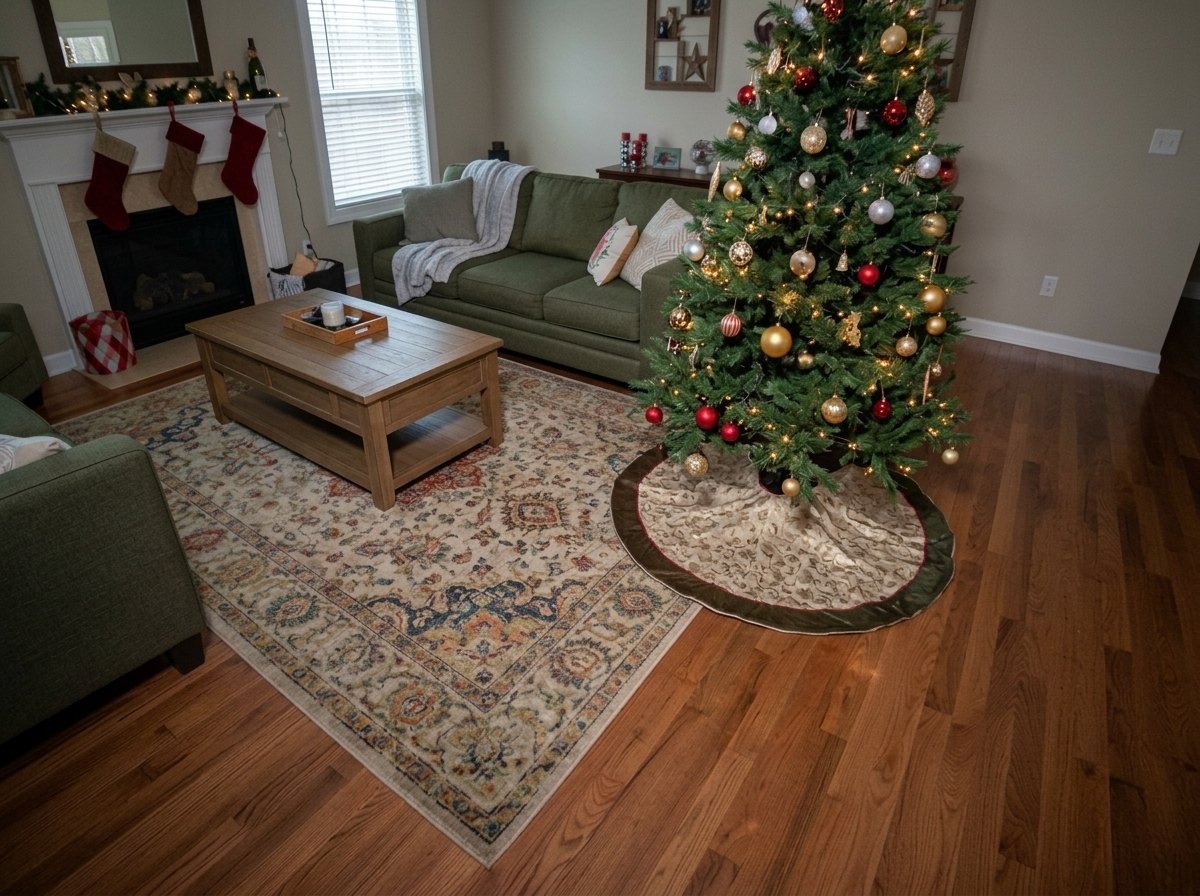
This is how HoHoCam works. You take one ordinary photo of your room, and the app turns it into a night-vision security-camera frame of Santa in that room, with a camera label and a timestamp.
Steps
- Snap the room. Take a photo of your tree, fireplace or hallway. Lights on works best: HoHoCam adds the night vision. Wide and level, with the floor visible. A tree isn’t required; the front door or the kids’ bedroom door work too.
- Pick the moment. Choose one of eight scenes, from down the chimney and milk & cookies to leaving presents and filling stockings. There are three Santas, all the same price.
- Label the camera. Name the camera after your kid (CAM 01 · ELLA) or keep it plain CAM 01, and set the date and time yourself.
- Choose a photo or a clip. Every photo gives you two takes of the same scene, so you keep your favorite. Pick “Clip” instead for a 5-second security-camera clip of Santa moving through your room; clips are one take and use 5 credits. A photo usually takes under a minute and a clip a few minutes.
- Save it for the morning. Save the frame with its CAM 01 label and timestamp. On Christmas morning, open “Show the kids”: full screen, no app name, no buttons.
Where it falls short
- The Santa is generated by AI. We say so on this site and in the app’s settings, and nowhere on the image your kids will see.
- It runs on iPhone only (iOS 16.4 or later). There is no Android or web version yet.
- There is no free trial. The app and the scene previews are free; packs start at $2.99 for 3 photos, with no subscription.
- On the busiest night, December 24, it can take a little longer, so make your footage a day or two early if you can.
- Your room photo is sent to our servers to make the footage and isn’t saved there. The details are in Is HoHoCam safe?
See all eight scenes in the examples.
The three methods side by side
| Real camera | Photo-editing app | HoHoCam | |
|---|---|---|---|
| What you need | A Santa suit, a helper and a camera | A photo of your room and a sticker app | An iPhone (iOS 16.4 or later) and a photo of your room |
| What you get | Real video of a real person | A photo with Santa added | A night-vision security-camera photo (two takes) or a 5-second clip |
| Cost | Nothing, if you already have the suit and the camera | Free to download; Santas sold as add-ons (see the comparison) | Free to download; packs from $2.99 for 3 photos |
| Watch out for | Being recognized; grainy video in the dark | A Santa that looks pasted on | It’s made with AI; no free trial |
Tips for the morning reveal
- Let them find it. Wonder out loud at breakfast whether the living-room camera caught anything overnight, then let them look.
- Pick a believable time. Set the timestamp to a moment after bedtime and before anyone was up. Our example frames use times between 11:47 PM on December 24 and 3:26 AM on December 25.
- Put their name on the camera. A label like CAM 01 · ELLA makes the footage feel like it was watching for them.
- Make the room match the footage. If Santa ate the cookies on camera, leave crumbs and an empty glass. If he left presents by the tree, put them where he did. More ideas in Proof Santa was here.
- Show it full screen, and hold the phone yourself. “Show the kids” hides the app name and the buttons. With older kids, skip the zoom: our FAQ calls the footage “real-looking enough that we recommend not zooming in with a 12-year-old.”
- Film their faces. Have a second phone ready. The reaction is the part you’ll want to keep.
- Keep a copy. The finished footage is saved on your phone; keep it with your family photos for next year.
Keep reading
Christmas Eve, sorted
One photo of your living room is all it takes.
Free to download · Packs from $2.99 · iPhone (iOS 16.4+)